
Use encrypted vaults
Vaults protect sensitive data with encryption at rest. Manage them from the relevant storage access.
Mis à jour le 29 October 2026
Create a vault
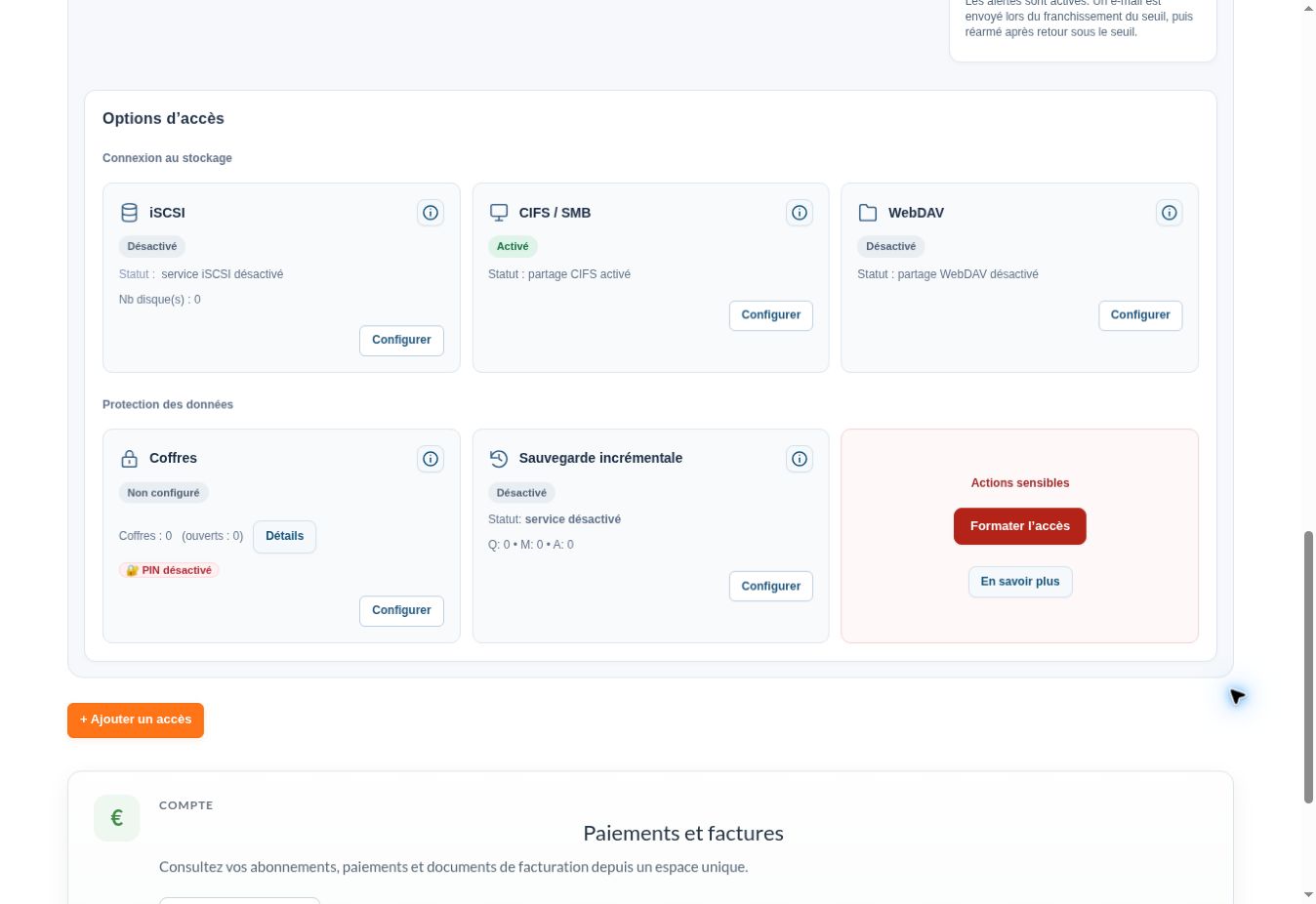
- Under “My access”, locate the relevant entry, select “Manage”, then choose “Full” view.
- Under “Data protection”, select “Configure vaults”.
- Under “Create a vault”, enter a “Vault name” of 3 to 60 characters. You can use letters, numbers, full stops, underscores and hyphens.
- Select “Create”. Wait for creation to finish before using the vault’s entry in the list.
Open and use a vault
- Under “My vaults”, find the vault name and check its status.
- Select “Open”. Check the vault named in the confirmation and enter the six-digit PIN if PIN protection is active.
- Wait until the status shows “open”.
- Use the mount folder shown in the list. Its path is files/Vaults/<name>.
- When you finish, close your documents and complete any transfers. Then select “Close” and confirm.
What to expect
When the vault is open, authorised users can access its decrypted contents. Closing it hides the decrypted folder. The encrypted data remains under vaults/<name>. Match the capitalisation of the path shown in your configurator.
Protect a vault with a PIN
Select “Enable PIN” and enter a six-digit code twice. To turn protection off, select “Disable PIN” and enter the current PIN. To change the PIN, disable protection and then enable it again.
If something looks wrong
If the PIN is rejected, check that you are using the code for the correct vault. An operation in progress may temporarily block commands. Do not delete a vault to fix a problem opening it.
Delete a vault
“Delete” erases the vault. Check your copies and the vault name before confirming. Selective file restore excludes vaults.
Need a hand?
Tell us which storage account or service is affected and what message you see. Our team will help.
Sign in to contact support