
Schedule shared storage backups
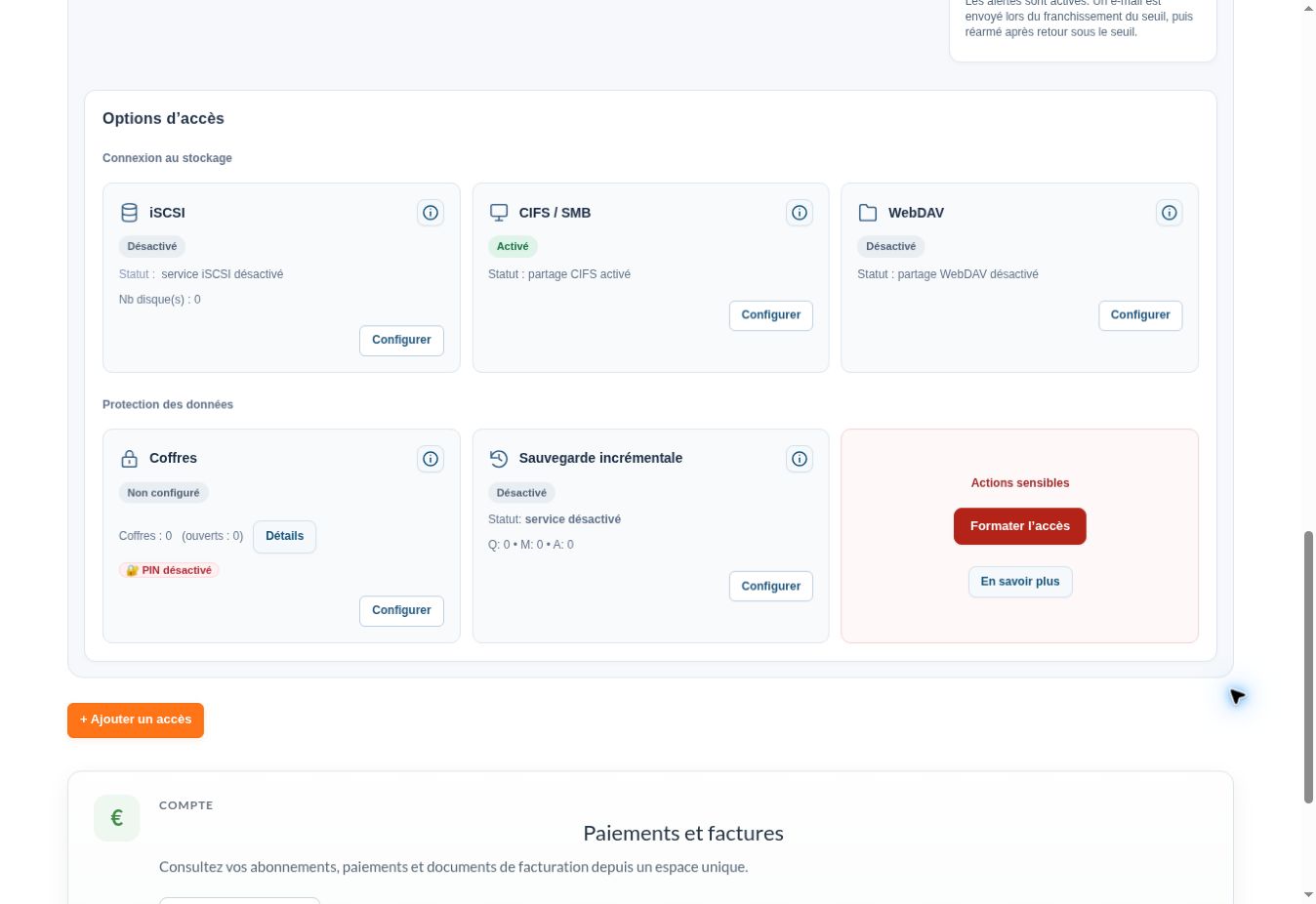
The incremental backup (SI) configurator manages daily, monthly and yearly restore points for your storage access.
Mis à jour le 29 October 2026
Open the settings
- Under “My access”, locate the relevant entry, select “Manage”, then choose “Full” view.
- Select “Configure incremental backups”.
- Check the status, available space and most recent backup before setting up your schedule.
Set the schedule
- Select “Enable incremental backups for this access”.
- Under “Daily”, select “Enable”, enter the time in HH:MM format and choose a maximum of 1 to 8 archives.
- If needed, enable “Monthly”. Enter a day from 1 to 31, or last for the last day of the month. Enter the time in HH:MM format and choose 1 to 3 archives.
- If needed, enable “Yearly”. Enter the date in MM-DD format, the time in HH:MM format and a limit of 1 to 10 archives.
- Select “Save settings”.
- Check the message and status. If an update is in progress, wait for it to finish.
What to expect
“Settings saved” confirms that your settings were applied. A new restore point may not have been created yet. Check the latest backup for each frequency.
Leave without losing your changes
“Back to my access” does not save changes. Select “Save settings” first if you want to keep them.
If something looks wrong
You cannot change settings while a snapshot operation is in progress. A storage usage measurement error or insufficient capacity can also block the request. Keep the message and check the available space before trying again.
Need a hand?
Tell us which storage account or service is affected and what message you see. Our team will help.
Sign in to contact support