
Enable CIFS and connect an SMB share
CIFS/SMB lets you mount the share for your storage access in a compatible environment.
Mis à jour le 29 October 2026
Open the configuration page
- Under “My access”, locate the relevant entry, select “Manage”, then choose “Full” view.
- Under “Storage connection”, select “Configure CIFS / SMB”.
- Check the status and access ID at the top of the page.
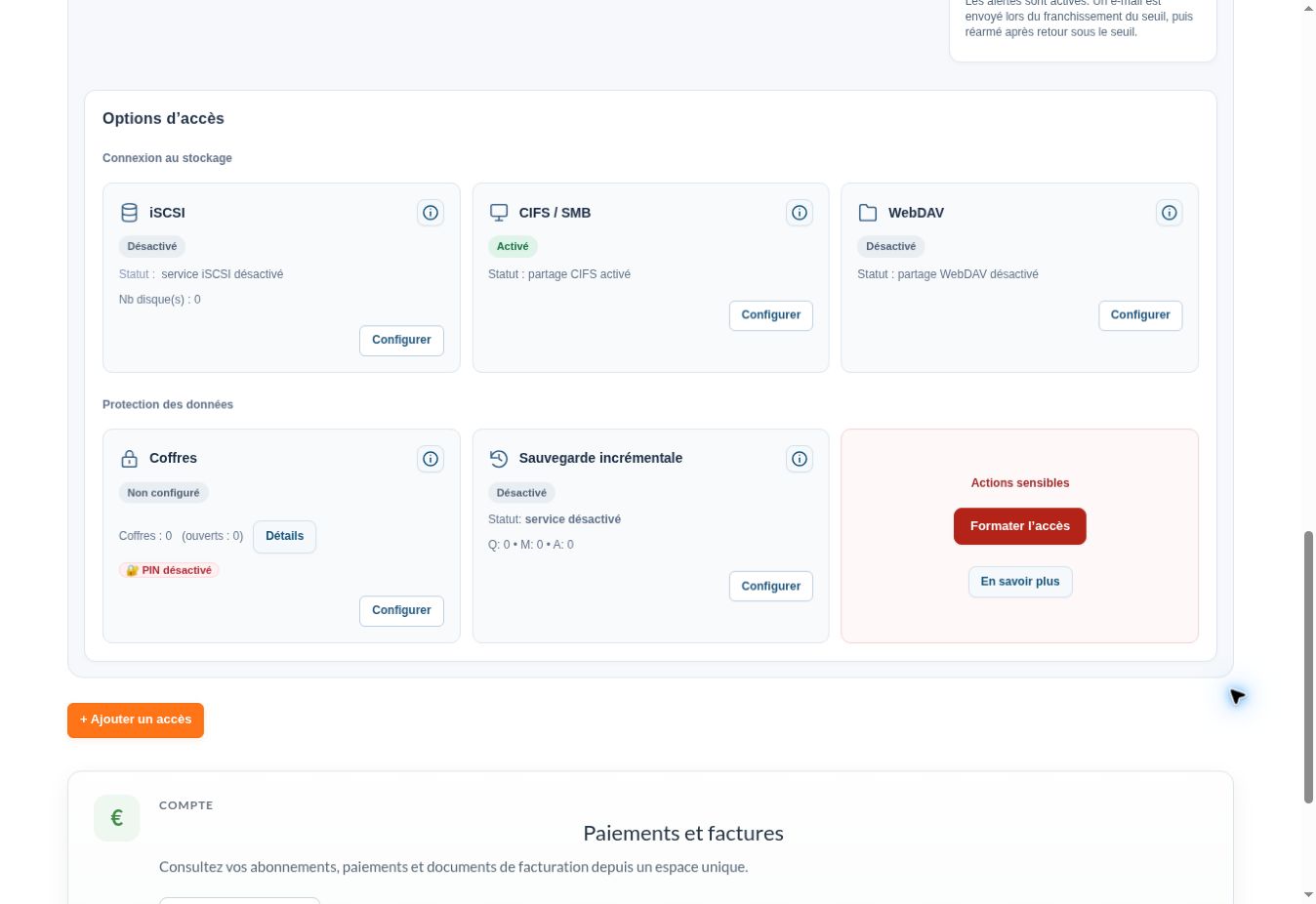
Activate the service and get your connection settings
If the service is off, select the activation option and wait for the status to show that it is active. Under “Connection information”, you’ll then find the server, folder, share, username and password. Use the “Copy” buttons. To copy the password, first reveal it on your own screen.
Connect your computer
- On Windows, open “Map network drive” and enter the “Share” value from DediSpace.
- On macOS, open Finder → Go → Connect to Server and enter the SMB address under “Quick connections”.
- On Linux, use an SMB client or mount the share using the method appropriate for your computer. The page gives an example.
- Enter the CIFS username and password for this access.
- Check that the expected folders are visible before transferring any files.
What to expect
The share appears on your computer as a network location. The public server shown is cifs.dedikam.com. The share name corresponds to your access.
Disable
Close all files and disconnect the affected drives before selecting “Disable CIFS sharing”. Wait for the operation to finish and check the status. This action interrupts SMB access.
If something looks wrong
If the status is active but the connection fails, check the full path, your CIFS credentials, any old credentials saved on your computer, and network connectivity to the service. The CIFS password is separate from your DediSpace password.
Need a hand?
Tell us which storage account or service is affected and what message you see. Our team will help.
Sign in to contact support