
Create a shared storage space
Choose a storage capacity and availability level to suit your files.
Mis à jour le 29 October 2026
Prepare to create your space
Sign in to your DediSpace account. Decide how much storage you need, choose a project name and have an email address where you can receive the activation details.
Configure a single storage space
- Under “My access”, select “+ Add access”, or open “Our plans”.
- Under “1. Your storage space”, enter a value in “Storage capacity” or select a preset.
- Under “2. Your availability level”, read “How the levels work”, then choose N1, N2 or N3.
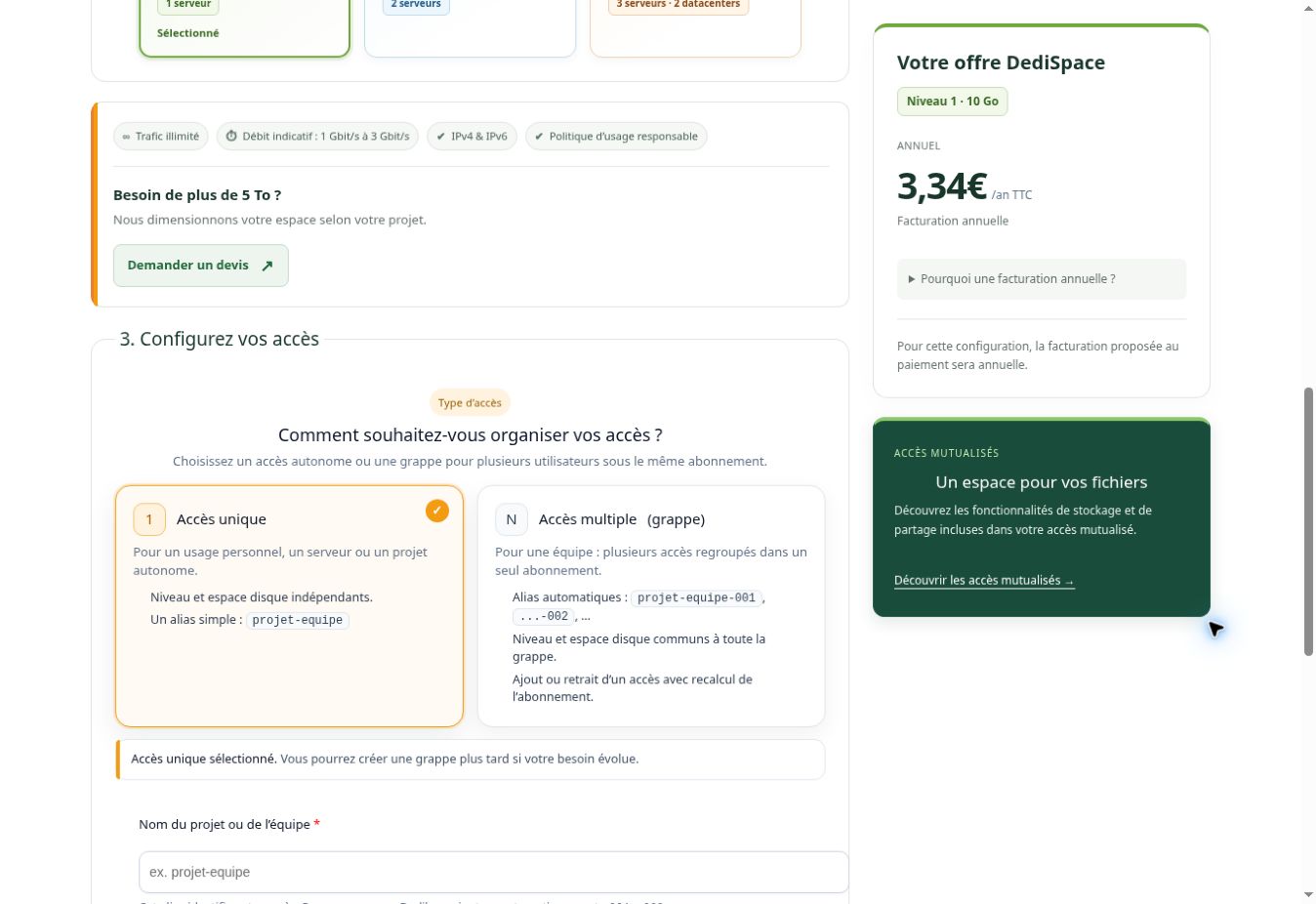
- Under “3. Configure your access”, select “Single access”.
- Enter the “Project or team name”. This becomes the alias for your storage space.
- Check the “Access email” address. The activation details will be sent there.
- Review “Your plan and price”, including capacity, availability level, price including VAT and billing period.
- When you have finished, select “Add this access to the cart”.
Cart and payment
Check the items and quantities in your cart before proceeding. Enter your contact details and follow the payment steps. For a bank transfer, include the references shown and allow time for the payment to arrive and be confirmed.
What to expect
Adding a space to your cart prepares an order. Once the order has been confirmed and processed, the space appears under “My access” with its ID, alias and status. Wait for activation before opening the applications.
If something looks wrong
A disabled Add button can mean the configuration is incomplete, for example if the project name is missing. If an order is already pending, check its status before starting again. For more than 5 TB, select “Request a quote”.
Need a hand?
Tell us which storage account or service is affected and what message you see. Our team will help.
Sign in to contact support