
SFTPGo Web — advanced guide
Manage shares, work with multiple items and check transfers.
Mis à jour le 29 October 2026
Review a share
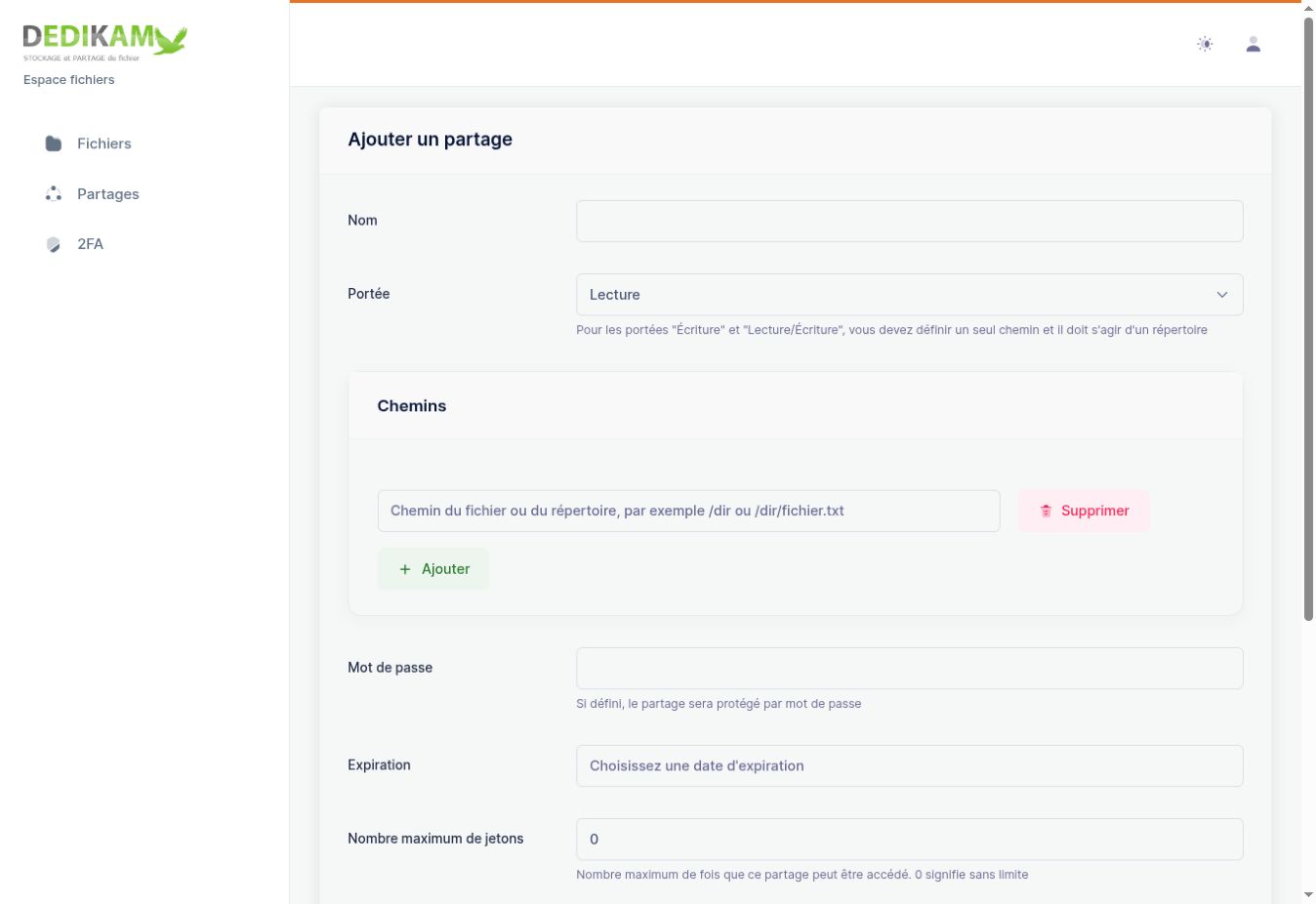
- Open “Shares” from the menu, then select “Add”.
- Enter a name and the exact paths to share.
- Choose the scope you need: Read, Write or Read/Write. For Write and Read/Write, the form requires a single path pointing to a directory.
- Check the password, expiry and maximum number of tokens. The form indicates that 0 means unlimited access.
- The “Allowed IP/Mask” restriction accepts comma-separated IP addresses or networks in CIDR notation. Only set it if you know which outgoing IP addresses the recipients use.
- Review your settings before selecting “Save”, then check the entry in the list of shares.
Check the result
- Open the link in a private window to see what a recipient sees.
- Check the permitted actions and accessible files.
- Return to the share manager to change or remove the link when it is no longer needed.
Work with multiple files
Select the items before applying a bulk action. When moving or deleting files, check each path. If a bulk download is available, check the contents of the archive once downloaded. Selecting files on screen does not confirm that you received them all.
Large transfers
Check the available space and keep the session active until you see the transfer result. If an error occurs, note the message, filename and file size. Browser or service limits mean that automatic resumption cannot be guaranteed. For regular large transfers, check the SFTP instructions for your storage access.
Using SFTPGo alongside Nextcloud
File changes may appear immediately in SFTPGo but require a Rescan in Nextcloud. Avoid editing the same document in several tools at the same time. Nextcloud versions and trash do not guarantee that you can undo an operation performed in SFTPGo.
Passwords and permissions
If you have forgotten your direct sign-in details, use SFTPGo recovery and the code sent by email. If you cannot access a folder or perform an action, ask support to check your permissions and provide the relevant path. Do not change technical settings at random to try to bypass a restriction.
Need a hand?
Tell us which storage account or service is affected and what message you see. Our team will help.
Sign in to contact support