
SFTPGo Web — basic guide
Manage files from your browser without installing a transfer client.
Mis à jour le 29 October 2026
1. Sign in
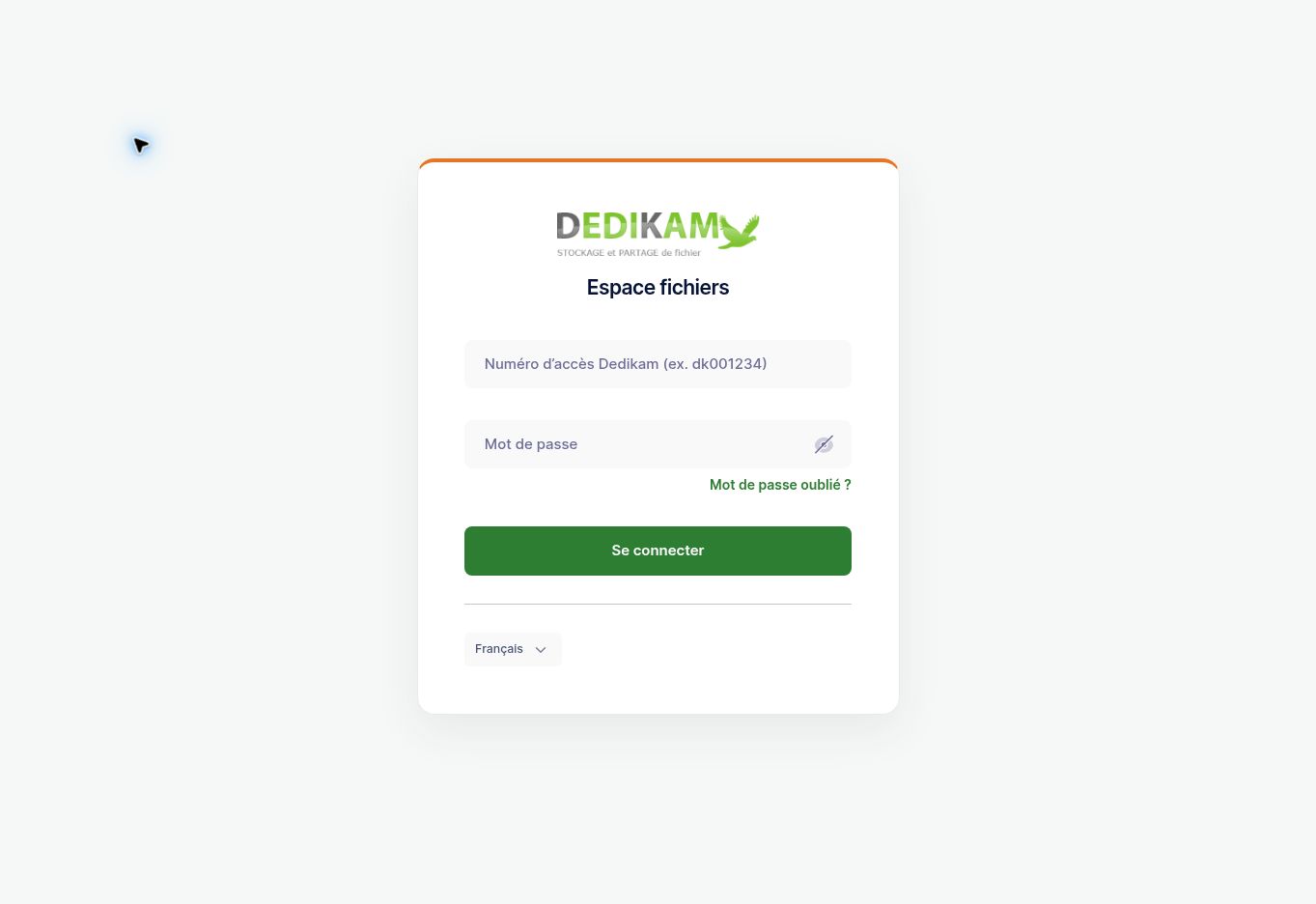
Open SFTPGo from the icon for your storage access in DediSpace. For a Pro service, use its dedicated address. To sign in directly, enter your SFTPGo username and password. Resetting your SFTP/SSH password in DediSpace does not change your SFTPGo password.
2. Find your folders
“Files” shows your storage space. In the shared setup we checked, open “DediKam_SHARE”. The breadcrumb trail starts with “Home” and shows the folder name, so you can see where you are and go back up. An empty folder does not mean sign-in failed.
3. Upload and download
- In the destination folder, select “Upload files”.
- Choose a small file and wait for the upload to finish.
- Check that it appears, then open its menu to download it.
- Open the downloaded copy on your computer to check the result.
4. Organise files
The “New folder” button is above the file list. Each item’s action menu shows the operations your account permits. Check the destination folder and any overwrite warnings before confirming.
5. Share
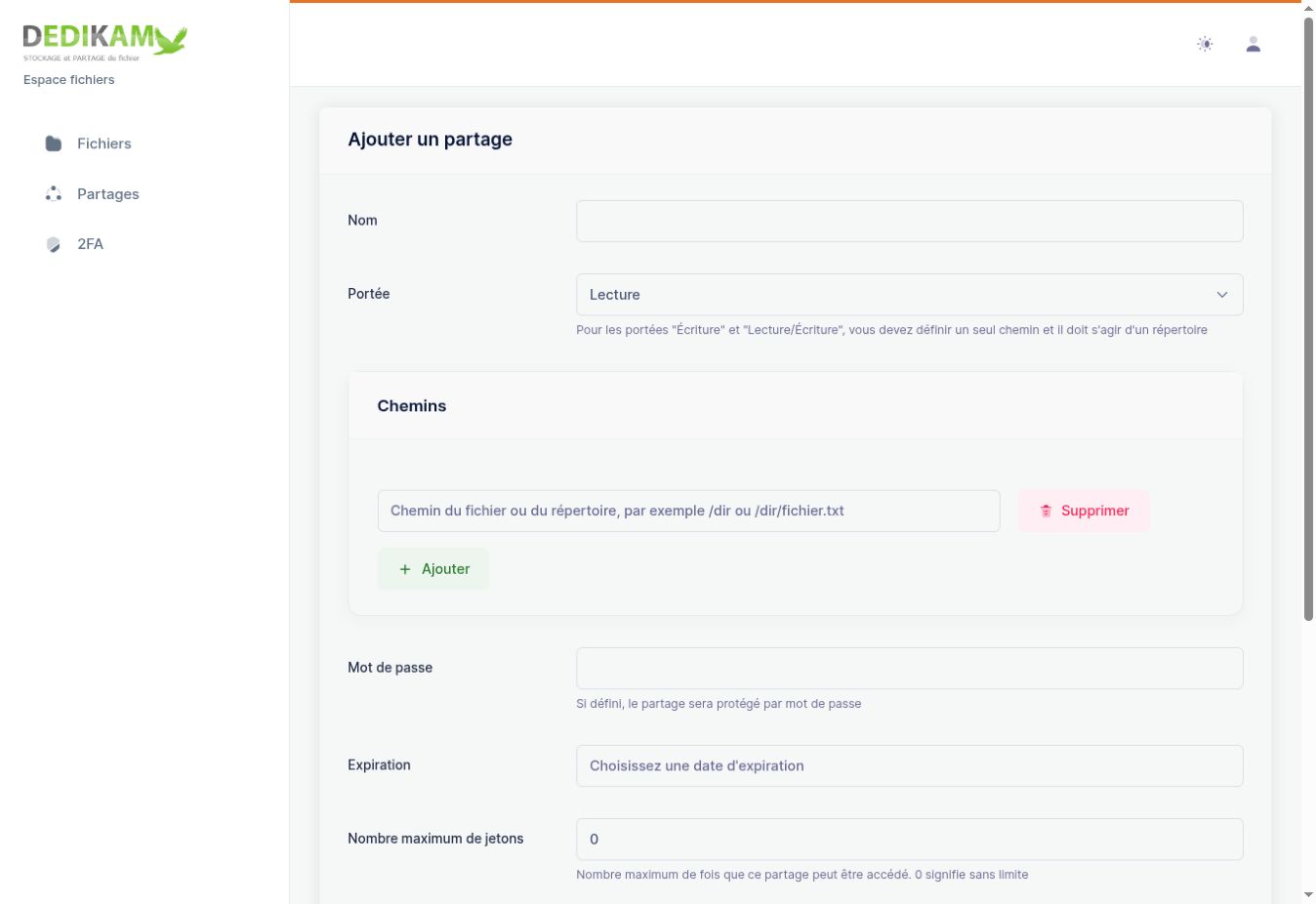
If your account permits it, create a sharing link for the file or folder. Check the available permissions, expiry and protection settings. Test the link in a private window before sending it.
Before deleting
SFTPGo works directly on your files. Do not assume that you can recover a deletion from the Nextcloud trash. Check your backups and keep a copy of important data before confirming.
Need a hand?
Tell us which storage account or service is affected and what message you see. Our team will help.
Sign in to contact support